Dirigo
A proper remote for Marantz and Denon receivers — and for the Apple TV or Android TV sitting next to them.
A proper remote for Marantz and Denon receivers — and for the Apple TV or Android TV sitting next to them.
A proper remote for Marantz and Denon receivers — and for the Apple TV or Android TV sitting next to them.
Dirigo talks to Marantz and Denon AVRs directly on your Wi-Fi — no telnet, no cloud round-trips, no account. Power, volume, inputs, zones, surround modes, room correction, and the settings pages your physical remote pretends don't exist. HEOS streaming is built in, with a queue that fills properly and a player that stays with you while you browse. Pair the television in the same room — Apple TV, or Android TV, Google TV and NVIDIA Shield — and the app becomes its remote too, with a live now-playing card that reads what's actually on screen and a progress bar you can drag to jump straight to a moment. The UI only shows features your specific receiver model supports.
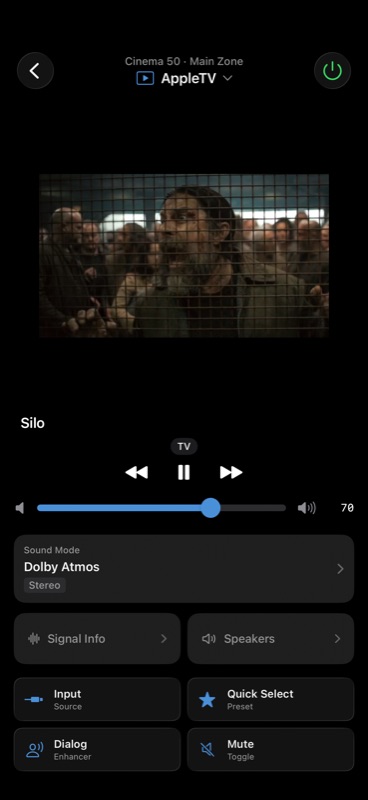
The full receiver, one screen at a time.
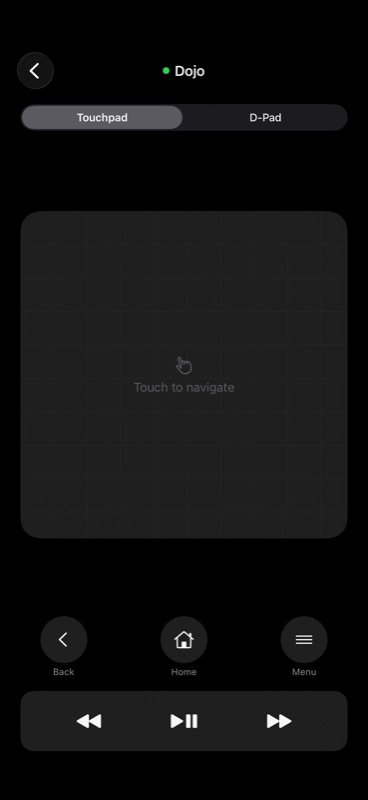
Pair a tvOS device once and Dirigo becomes its remote — a swipe pad, or a D-Pad if you would rather have buttons, plus Back, Home, Control Centre, and the app switcher. The volume slider underneath drives the receiver, not the TV, so one screen covers both. There is no public iOS framework for this: Dirigo speaks the same network pairing protocols Apple's own Remote uses. New in 2.4: for plain navigation you often need not open this screen at all — on Home, the artwork itself is a hidden control pad. Swipe to move, hold to keep going, tap to select, two fingers to go back.
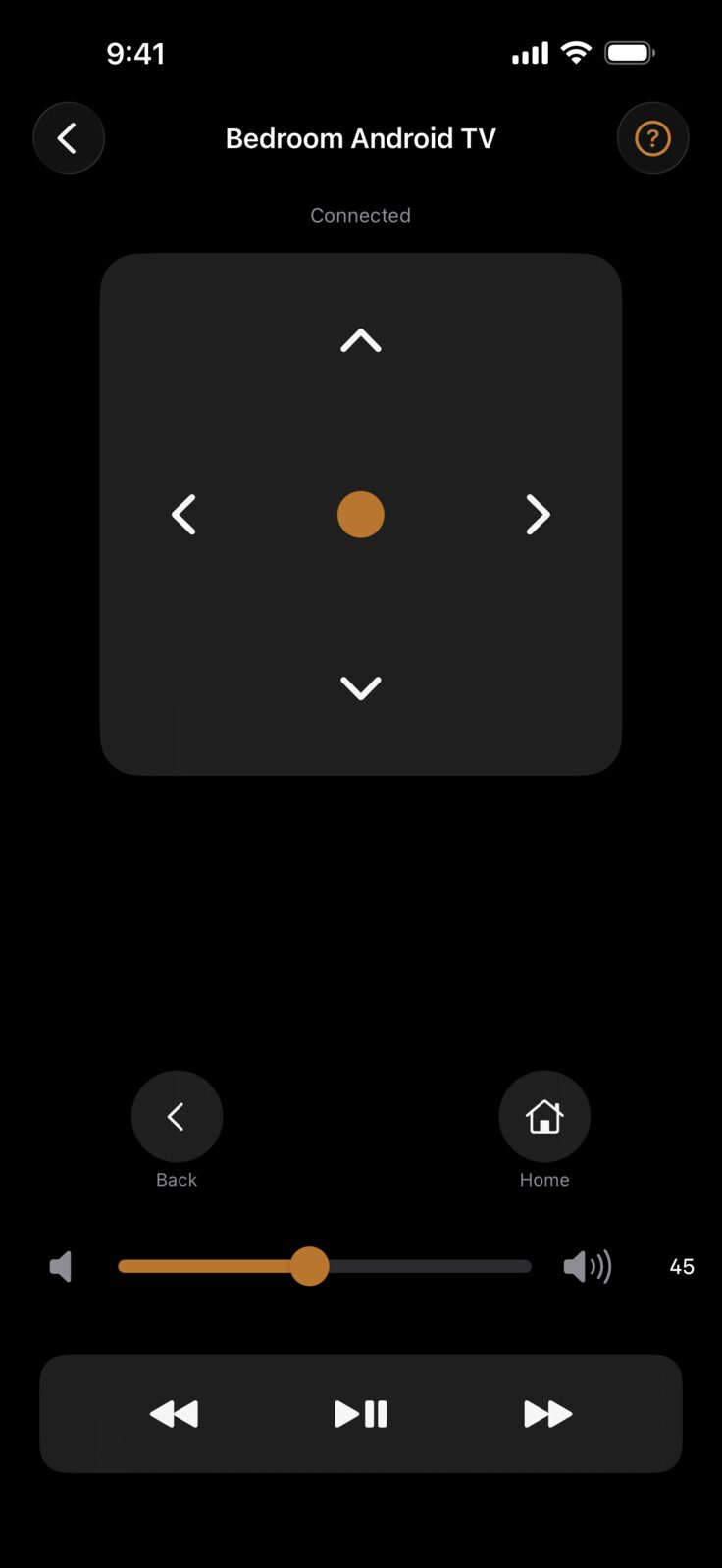
New in 2.0. Android TV, Google TV and NVIDIA Shield pair exactly like an Apple TV — Dirigo finds the television on your network and you type in the code it puts on screen. You get a directional pad, Back and Home, and transport controls, and the remote tells you which app is on screen. Volume goes to the receiver here too. Only buttons the television actually answers are shown: the ones it silently ignores were removed rather than left to look broken. The Home-screen artwork works as a hidden control pad for these too, and from 2.4 you can ask Siri to turn the television on or off by name.
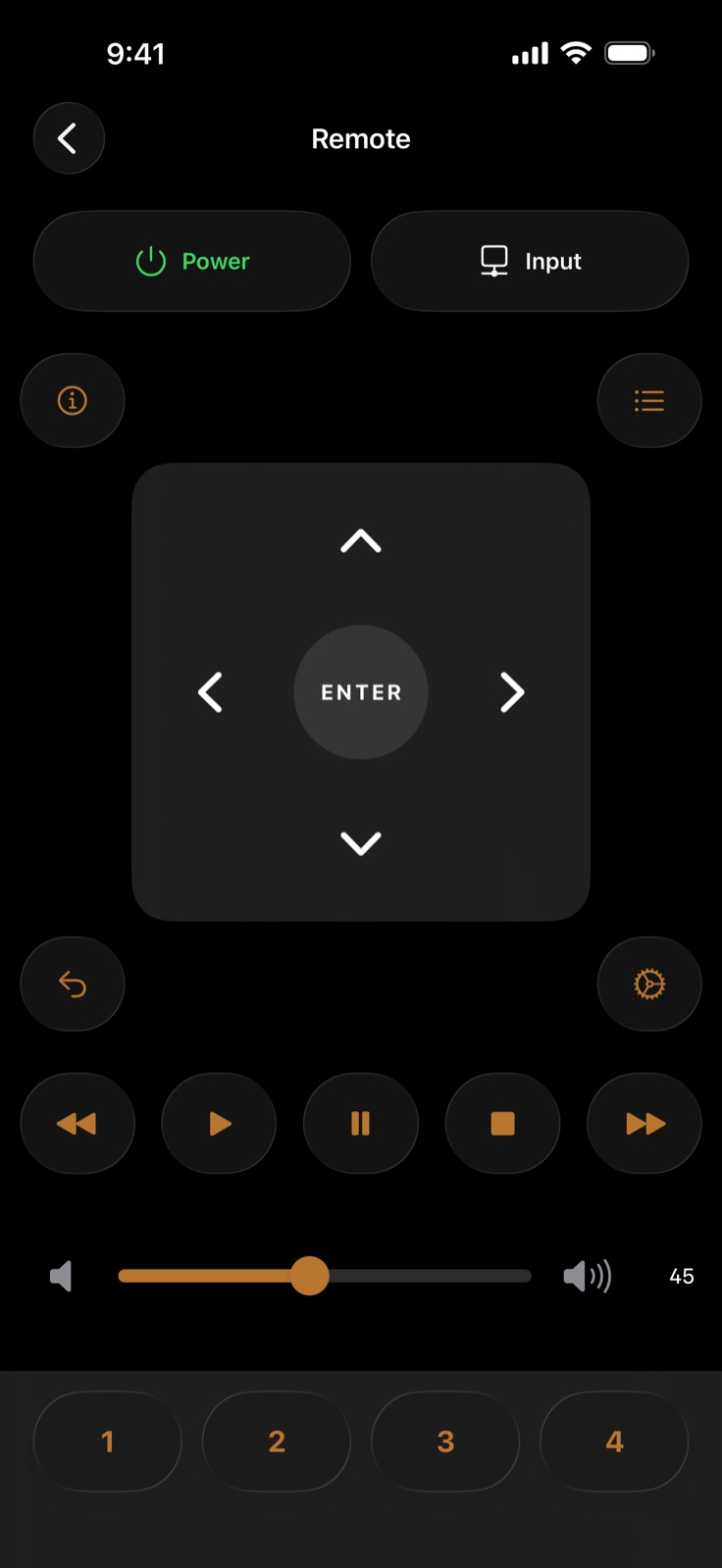
Power and input at the top, a real directional pad with Enter for driving the receiver's on-screen menus, full transport controls, and the four Quick Select presets along the bottom. Everything the physical remote does, without hunting for the right button in a dark room.
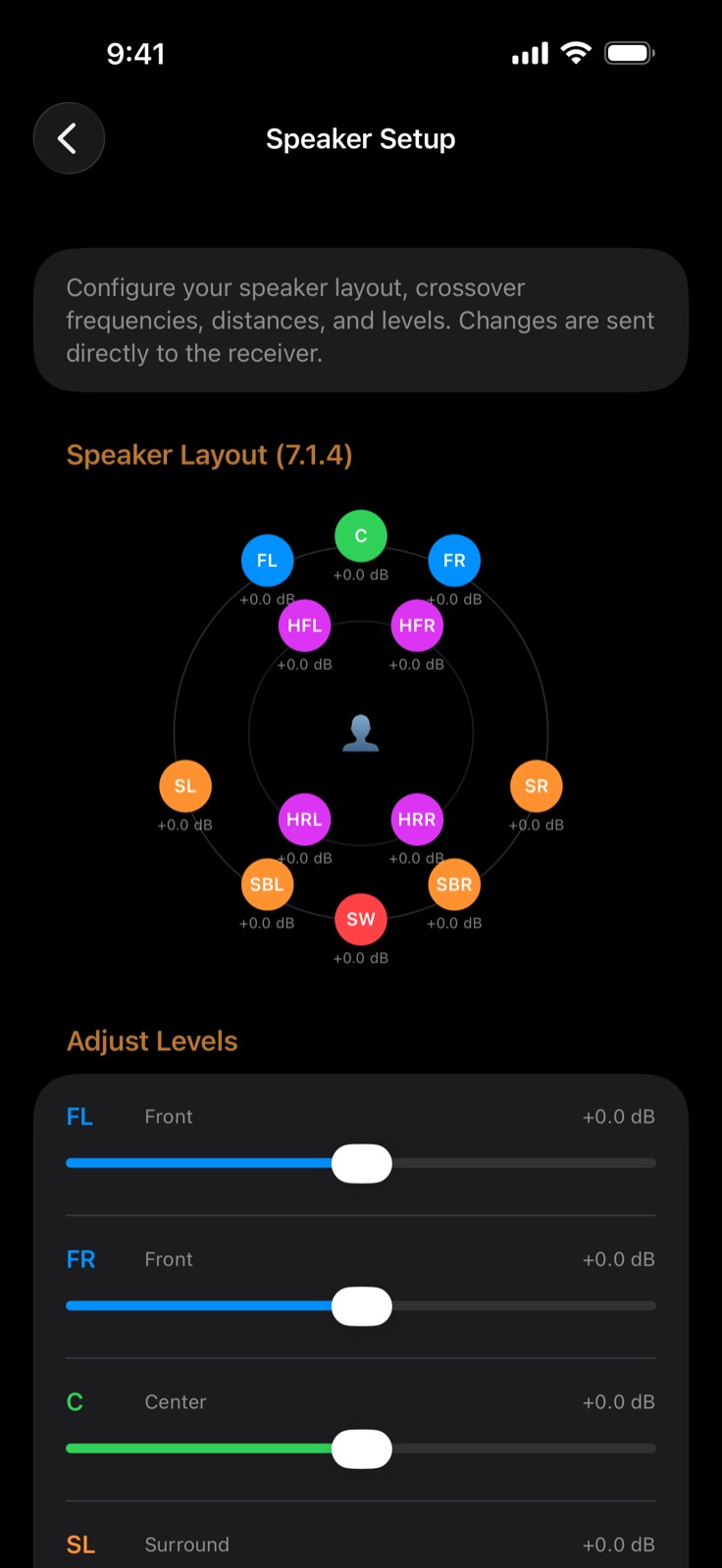
A top-down view of your actual layout — here a 7.1.4 system, with the four height channels picked out in magenta — and an individual level trim for each channel. Changes are sent straight to the receiver, so you can balance the room from the sofa instead of crouching at the front panel.
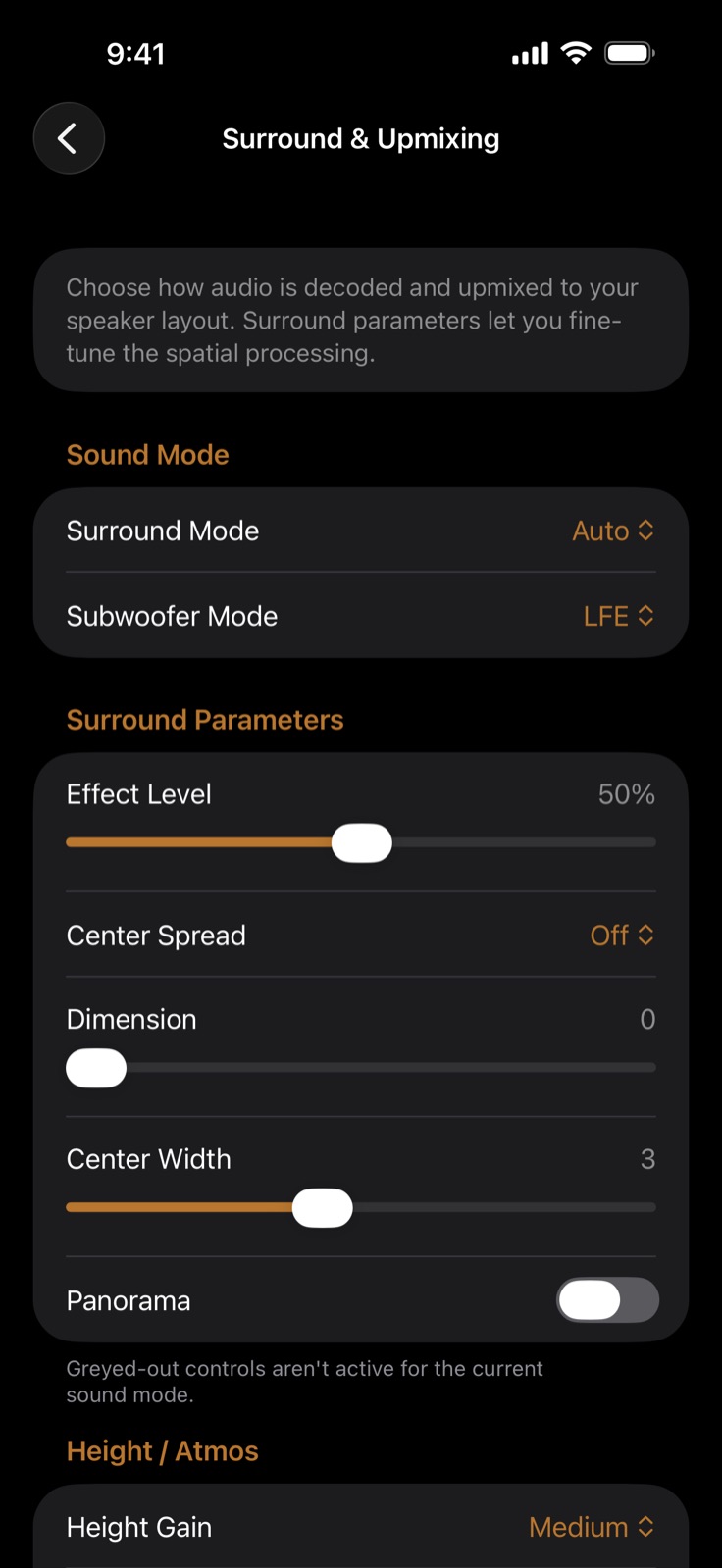
Choose how audio is decoded and upmixed to your layout, then fine-tune the spatial processing — effect level, centre width, panorama, Atmos height gain. Controls your current sound mode doesn't use are greyed out rather than hidden, so you can see what exists without guessing why it isn't working.
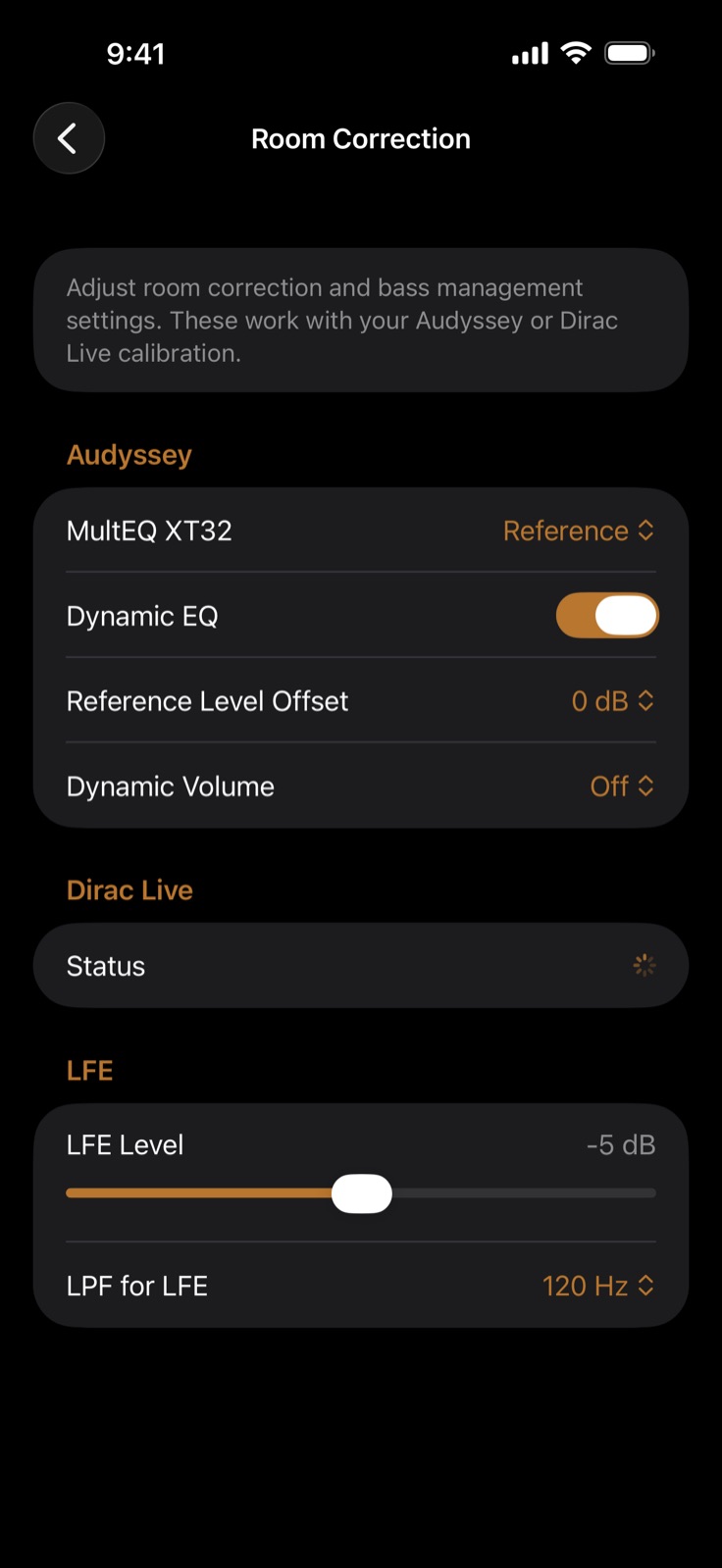
The calibration settings normally buried several menus deep: the MultEQ curve, Dynamic EQ and Dynamic Volume, reference level offset, and separate subwoofer level and low-pass controls. Dirac Live status is read back from the receiver on models that support it.
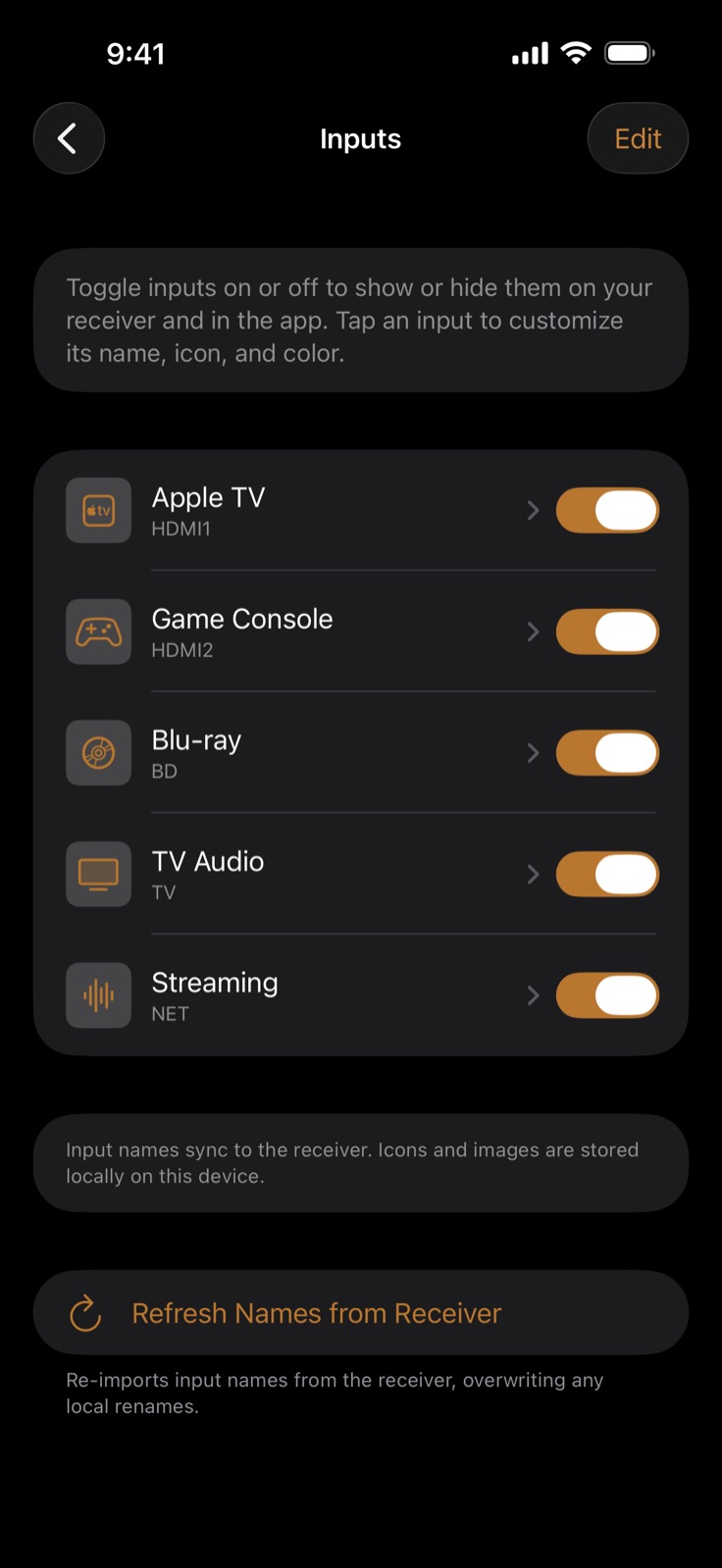
Switch off the inputs you never use so they stop appearing on the receiver and in the app, and rename the ones you do — with your own icon and colour. Names sync back to the receiver so its front panel agrees with your phone; icons and artwork stay local to your device.
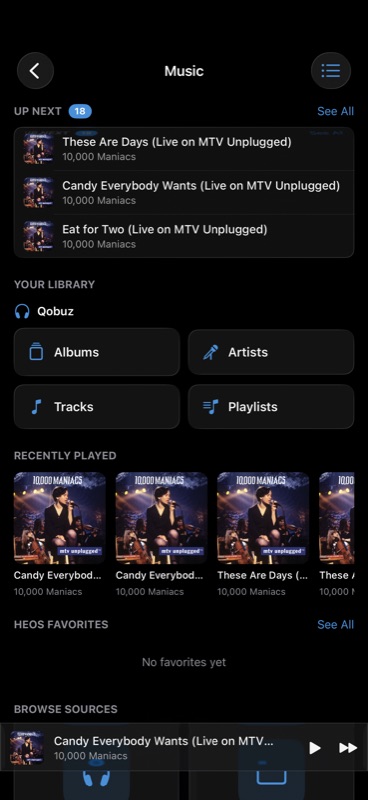
New in 2.3. Play All queues the whole album or playlist instead of just the first track, and the queue is right there at the top — reorderable, with what is coming next. The mini player stays pinned to the bottom while you browse for the next thing, so the controls never disappear behind a screen of album art. Whichever services your receiver is signed into show up as your own library.
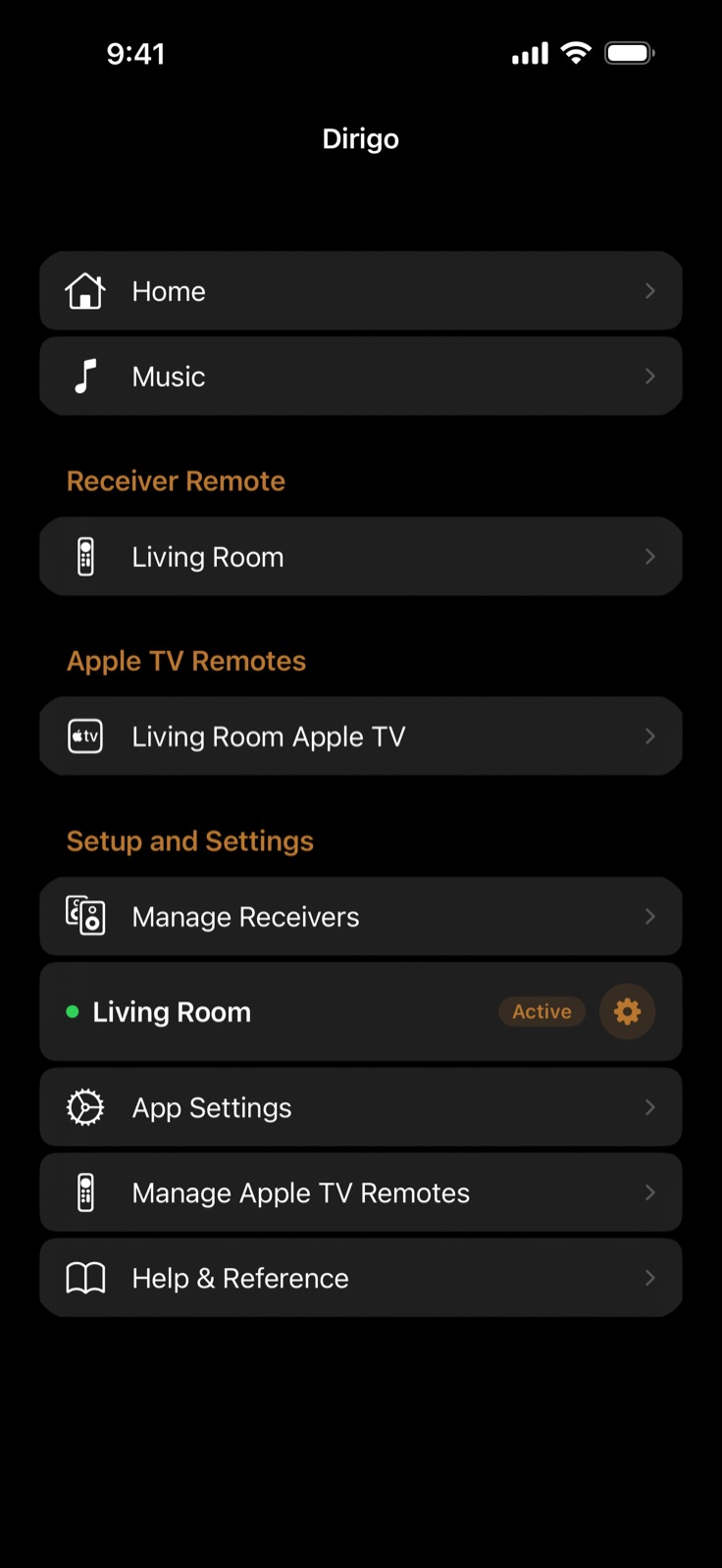
Each receiver and each paired Apple TV gets its own remote entry, with music, zones, and every settings panel a tap away. The green dot and Active tag show which receiver the app is talking to right now — useful once you have more than one. New in 2.5: a short guided tour runs once — after the first pairing on a new install, or on first open after updating — pointing out where the settings live, how to add an Apple TV or Android TV remote, how to rename and re-colour your inputs, and where the documentation is. It is reopenable at any time from App Settings, and every panel that slides up from Home now carries a ? that opens the documentation written for that panel — sound mode, speakers, signal info, inputs, Quick Selects and the rest.
Receiver control from the wrist — over Wi‑Fi directly, so it keeps working with your iPhone in another room.
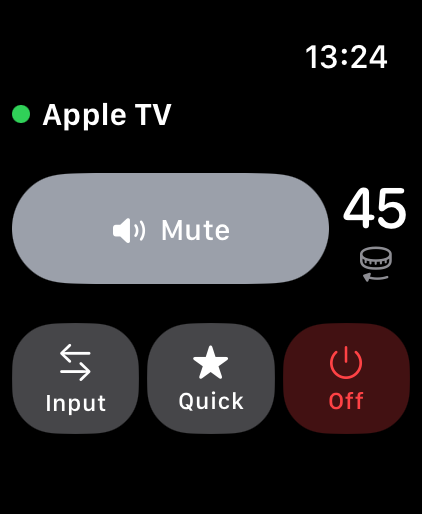
The whole receiver on one screen: volume on the Digital Crown, mute, input, Quick Select, and power. The watch talks to the receiver over Wi-Fi directly, so it keeps working with your iPhone in another room — and falls back to the phone only when it has to.
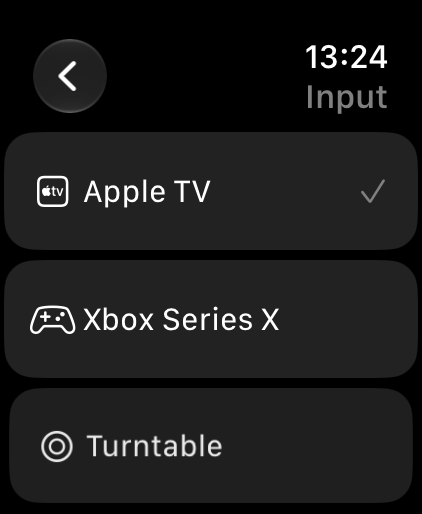
The same custom names and icons you set on the phone, on the watch — so it says Turntable, not PHONO. Tap one to switch the receiver.
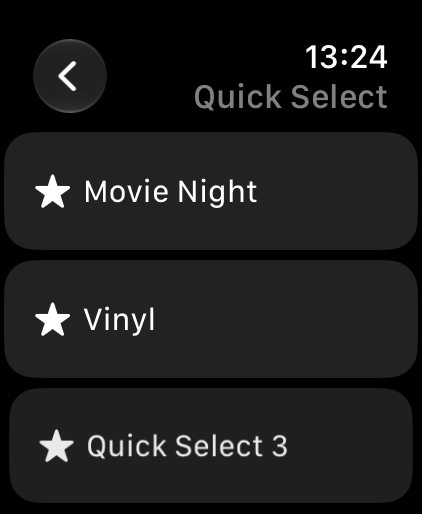
Your receiver's presets, named as you named them. One tap sets the input, sound mode and volume together — the whole room, from a watch face.
The same app, laid out for a bigger screen.
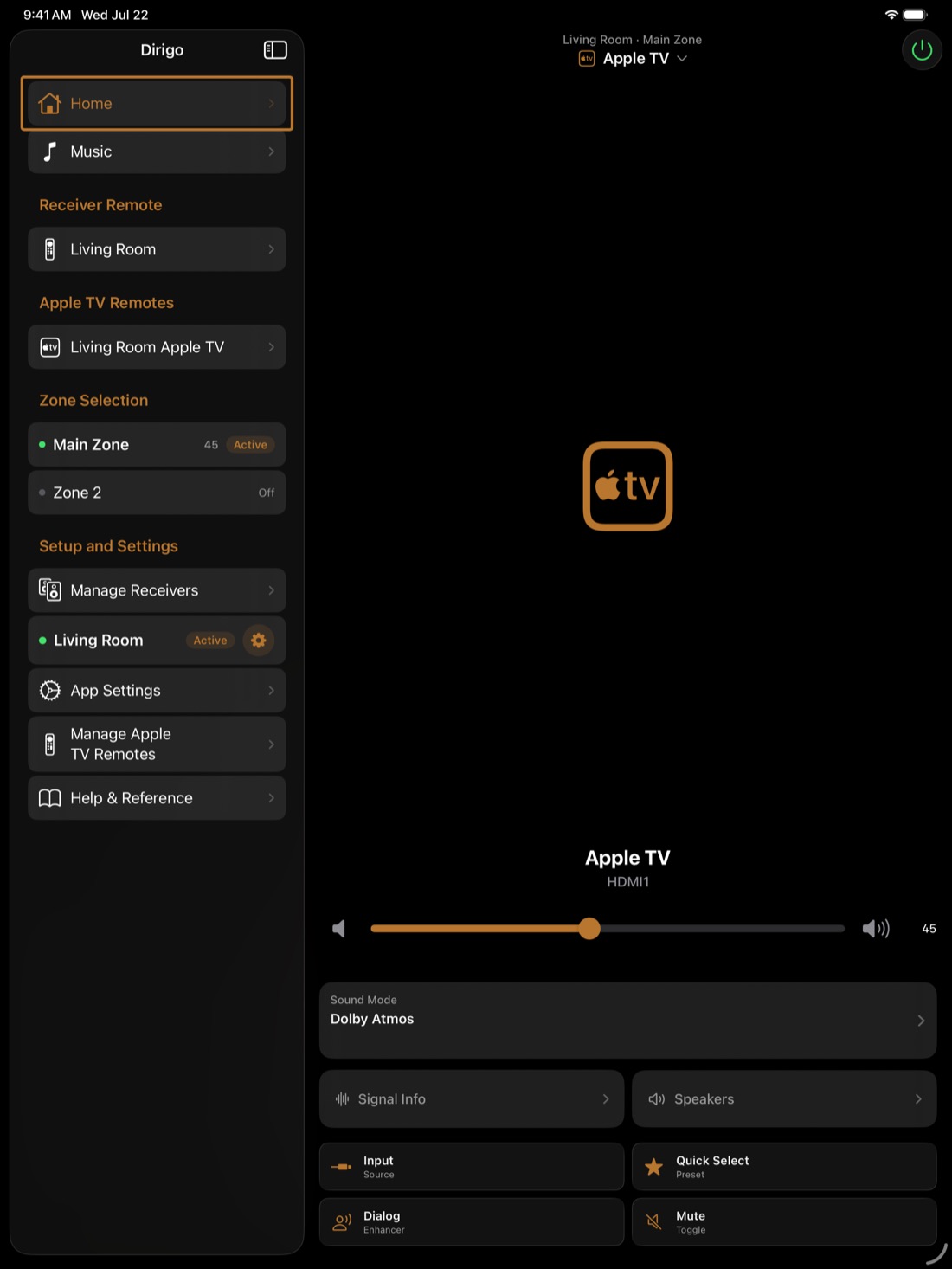
The same app adapts to a sidebar layout, so navigation, both remotes, and zone switching stay visible while the receiver controls fill the rest of the screen. Zone Selection puts Main Zone and Zone 2 side by side with their current volume and power state — handy when the second zone is feeding another room.
Screenshots are captured in the app's built-in Demo Mode: the receiver, televisions, room, and input names shown are sample data, not a real system. Apple TV is a trademark of Apple Inc. Android TV and Google TV are trademarks of Google LLC. NVIDIA SHIELD is a trademark of NVIDIA Corporation.
Dirigo collects no analytics, identifiers, or tracking. All receiver and television control happens on your local network. Now-playing artwork is delivered in-band by the paired device. HEOS streaming browsing loads album art directly from the music service's image URLs through standard iOS networking. Read the full privacy policy →
Tested with current-generation Marantz and Denon AV receivers that support HEOS and expose the standard control HTTP and UPnP endpoints (Cinema 50 / SR-series, AVR-X-series, and similar). The UI hides features your specific model does not expose. Television pairing works with Apple TVs running tvOS 18 or later, and with Android TV, Google TV and NVIDIA Shield devices that advertise the built-in remote pairing service.